🗺️ Step 1: Navigate the Playground Map
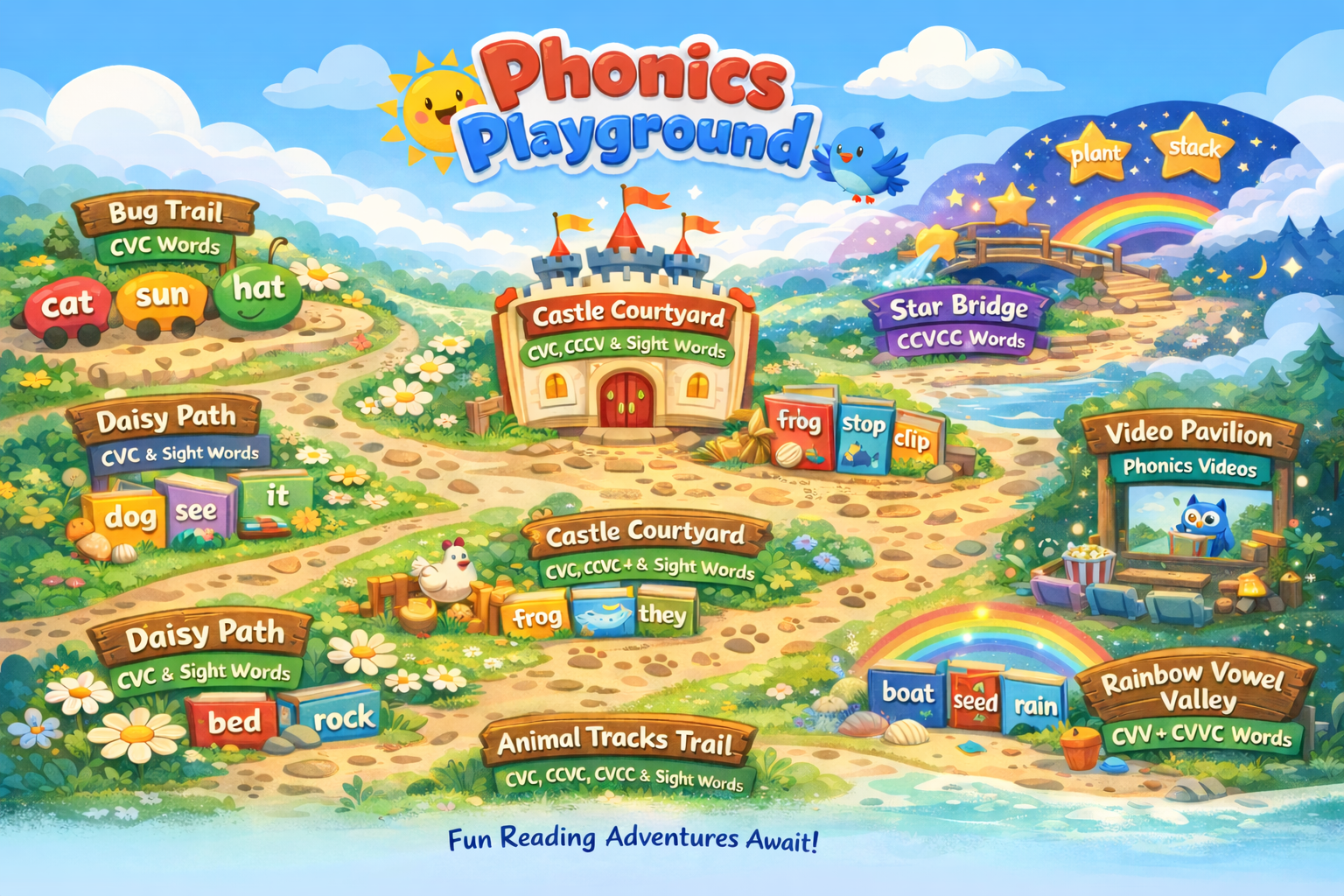
The Phonics Playground map is your gateway to learning! Each zone on the map represents a different phonics skill level, from beginner CVC words to advanced patterns.
Learning Zones Include:
- Bug Trail: CVC Words
- Daisy Path: CVC & Sight Words
- Frog Hop Path: CCVC Words
- Castle Courtyard: CVC, CCVC & Sight Words
- Rocky Road: CVCC Words
- Animal Tracks Trail: CVC, CCVC, CVCC & Sight Words
- Star Bridge: CCVCC Words
- Magic E Path: CVCe Words
- Rainbow Vowel Valley: CVV & CVVC Words
- Video Pavilion: Phonics Videos
Click on any zone to see all the books available in that skill level. Start with Bug Trail if you're just beginning your phonics journey!
📚 Step 2: Select Your Book
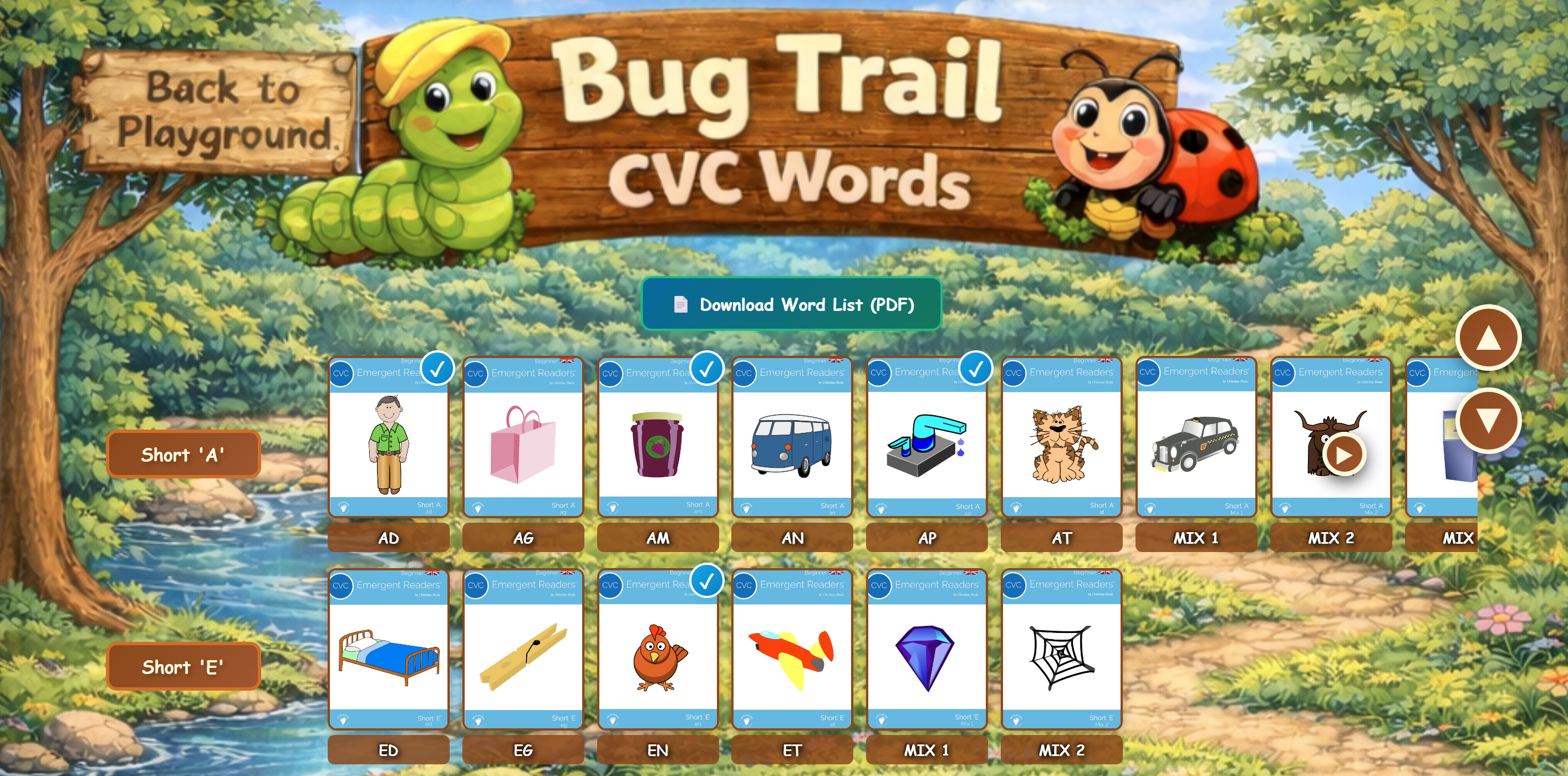
Once you click on a zone, you'll see a collection of books organized by rows.
Understanding the Book Page:
- Back to Playground: Click to return to the main map
- My Progress: Click to see which books you've read and print out your progress report
- Row titles: Show what phonics patterns are in that section (like "Short 'A'", "Short 'E'")
- Book titles: Displayed below each book cover (AD, AG, AM, AN, AP, AT, MIX 1, MIX 2, etc.)
- Blue checkmark (✓): Appears on books you've already read and marked as complete
Download Word Lists
Notice the "Download Word List (PDF)" button at the top? Click this to get a printable list of all words in the zone - perfect for offline practice or quick reference!
Click on any book cover to open and start reading!
🎮 Step 3: Use the Book Features
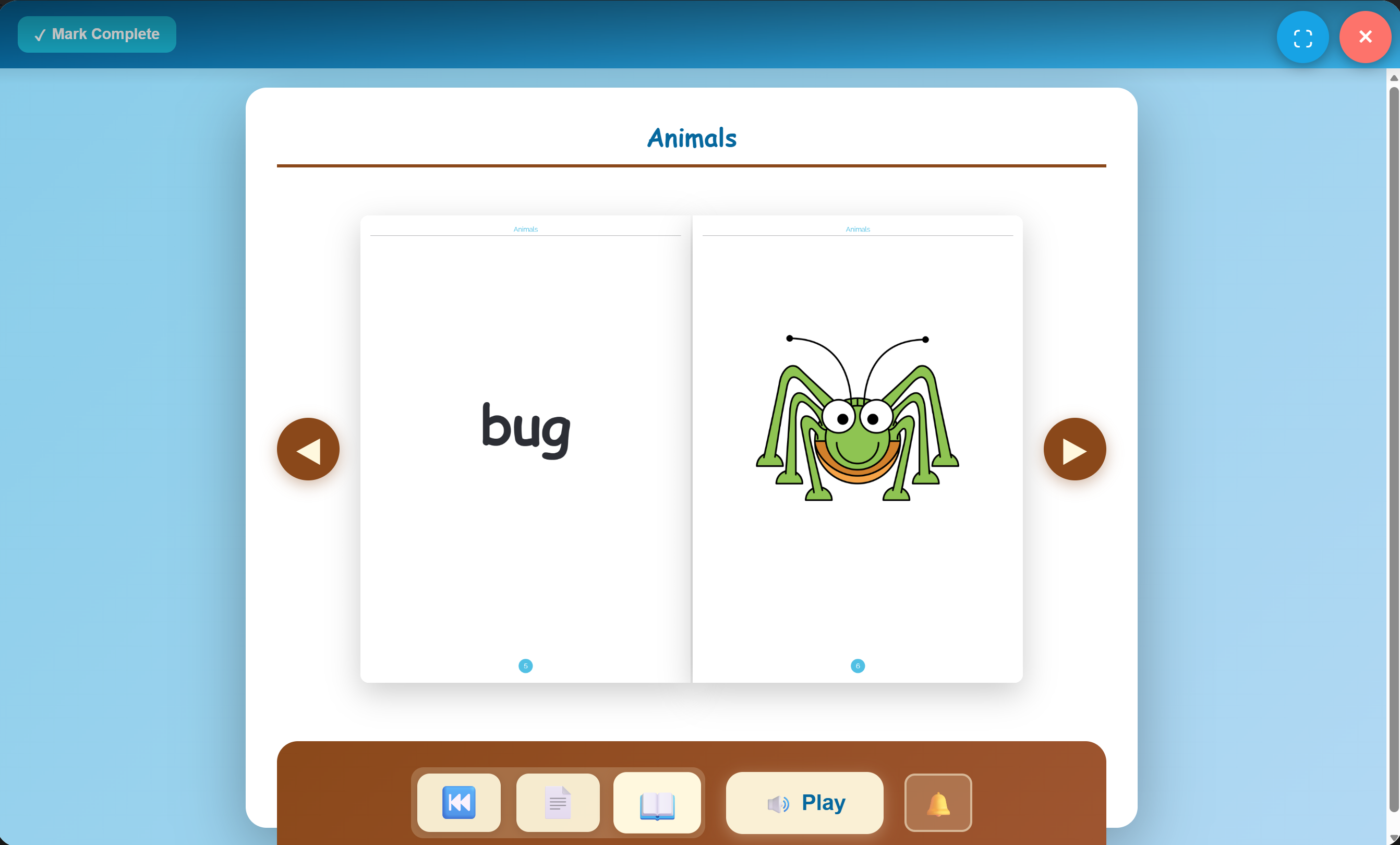
The book reader has simple, easy-to-use controls to help children read independently!
Arrow Buttons
Click the left and right arrows to turn pages and navigate through the book at your own pace!
Single Page Button
Click to view one page at a time - perfect for focusing on individual words.
Double Page Button
Click to view two pages side by side - great for seeing more words at once.
Play Button (Audio)
Click to hear the word pronounced clearly. Listen as many times as you need!
Bell Icon
Toggle page flip sound on or off. Turn off if you prefer silent page turning!
Mark as Complete
Click this button when you've finished the book to save your progress and add a checkmark!
Restart from Beginning
Click to jump back to the very first page and start the book over from the beginning - great for re-reading practice!
Fullscreen Button
Click to expand the book to fullscreen for an immersive, distraction-free reading experience!
Look in the top-right corner for two helpful buttons: the blue fullscreen button (⛶) to go fullscreen, and the red X button to close the book and return to the zone selection page.
🎧 All books include audio support so children can practice independently!
📊 Step 4: Track Your Progress
Watching your progress grow is motivating! Phonics Playground makes it easy to see which books you've completed.
How Progress Tracking Works:
- Sign In Required: You must be signed in to save your progress (see "Sign in to track" message at top of books)
- Checkmarks: Completed books show a blue checkmark (✓) in the corner
- My Progress: Click the "My Progress" button in the navigation to see all your completed books
- Mark as Complete: After reading a book, mark it complete to save your progress
- Remove Books: You can remove individual books from your completed list if needed
- Clear All: Start fresh by clearing all your progress to begin your reading journey again
- Print Your Progress: From the My Progress page, click "🖨️ Print Report" to print a report - perfect for portfolios and report cards!
- Download Your Progress: Click "💾 Download Report" to save a standalone HTML file of your progress that you can keep, share, or print later!
Sign up for a free account to unlock progress tracking! You'll be able to see your reading journey and celebrate your achievements.
⚙️ Step 5: Manage Books (Teachers & Parents)
Teachers and parents can guide children's learning journey by controlling which books are accessible. This helps focus learning, prevent overwhelm, and ensure students master skills before moving forward.
How to Access Manage Books:
- Sign In Required: You must be signed in to access book management features
- Desktop Only: The Manage Books button appears in the navigation bar on desktop computers (hidden on mobile devices)
- Look for the ⚙️ Button: Click the "⚙️ Manage Books" button next to "My Progress"
What You Can Do:
- Lock Individual Books: Click the lock icon (🔓/🔒) next to any book to lock or unlock it
- Lock Entire Rows: Use the toggle switch next to each section heading (like "Short A Books") to lock or unlock all books in that row at once
- Lock All Books: Click the "🔒 Lock All Books" button to lock everything instantly
- Unlock All Books: Click the "🔓 Unlock All Books" button to make all books available again
Locked Books Appearance:
- Grayed Out: Locked books appear faded and grayed out on the main page
- 🔒 Lock Icon: A lock icon appears on locked book covers
- Not Clickable: Students cannot open locked books - they're disabled
- Clear Visual: Easy to see at a glance which books are available vs. locked
When to Use This Feature:
- Sequential Learning: Lock advanced books until earlier ones are mastered
- Focused Practice: Unlock only the books you want your child to practice this week
- Preventing Overwhelm: Reduce choices for children who struggle with too many options
- Guided Instruction: Teachers can assign specific books to different students
- Skill-Based Progression: Ensure mastery at each phonics level before advancing
Start by locking all books, then unlock just 3-5 at a time. Once children master those books (reading with 90% accuracy), unlock the next set!
🎯 Your book management settings are personal - each account has their own locked/unlocked books, so multiple students or family members can use the same program with different access levels!
🌟 Tips for Effective Learning
For Maximum Success:
- Repetition is key: Read each book 2-3 times until children can read with 90% accuracy
- Audio support builds independence: Children can practice on their own with the audio feature
- Don't rush: Every child progresses at their own pace - celebrate each success!
- Practice offline too: Purchase PDF versions of the books for additional practice away from the screen
- Mark books complete: Help children track their progress and stay motivated by marking books as complete
Signs Your Children are Ready to Progress:
- Can read the book with 90% accuracy or better
- Read smoothly without excessive pausing
- Can decode words without needing to hear the audio first
- Show confidence and excitement about reading
🎯 Remember: Success builds on success! Mastery at each level builds confidence for the next challenge.
🔧 Troubleshooting
Audio Not Working?
- Make sure your device volume is turned up
- Try refreshing the page
- Some browsers block audio until you interact with the page - click the Play button
Progress Not Saving?
- Make sure you're signed in (check for "Sign in to track" message)
- Click the sign in button and create a free account
- Mark books as complete after reading
Best Browser Compatibility:
- Chrome, Safari, Firefox, and Edge all work great
- For best experience, use an updated browser version
- Mobile devices and tablets are fully supported!
Ready to Start Reading?
Dive into the adventure and watch reading skills grow!